ScriptlySupport Center
Explore helpful guides to get the most out of Scriptly.
App User Guide
Step-by-step help for every part of the app. Select a tab below to see how it works, just like the tabs at the bottom of Scriptly.
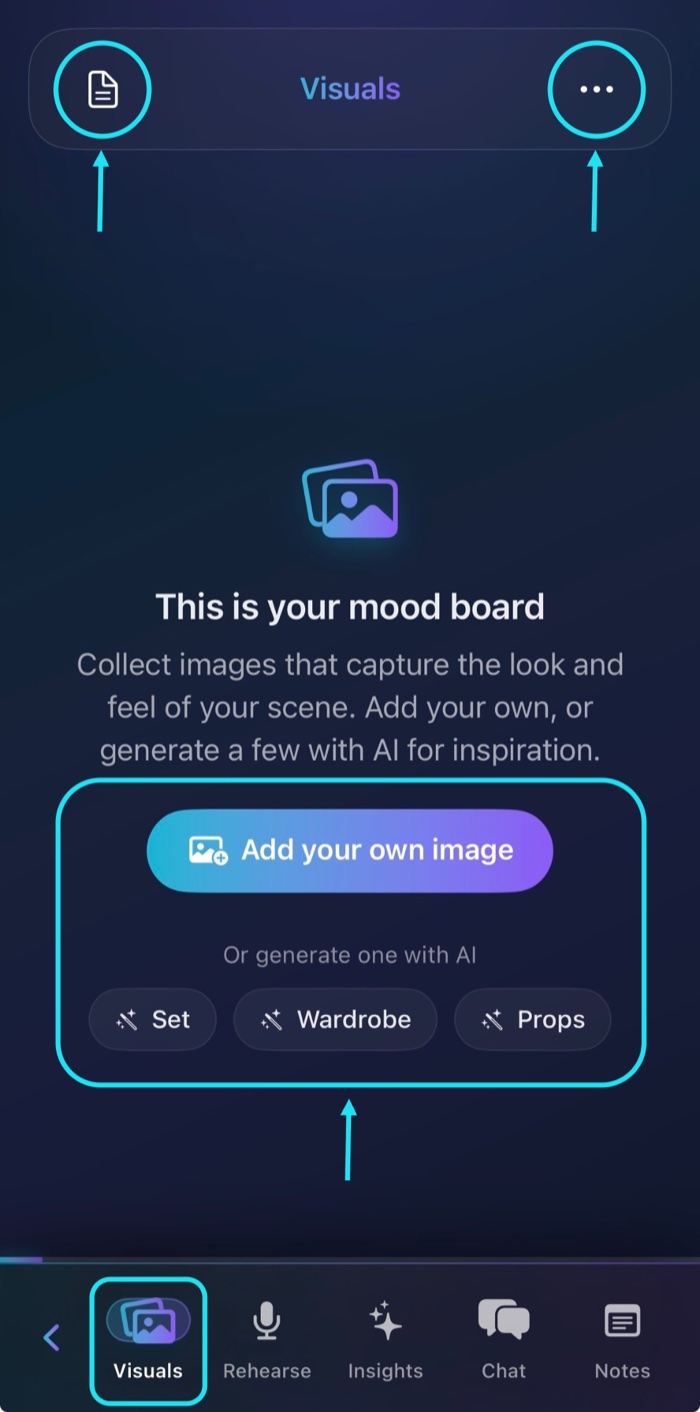
Using the Visuals Tab
Create a mood board to visualize your scene using your own images or AI-generated inspiration.
Creating Your Mood Board
- Tap Visuals in the bottom navigation bar.
- Select Add your own image to upload an image.
- Or use AI to generate images for your Set, Wardrobe, or Props.
- Arrange your images to bring your scene to life.
Additional Tools & Options
- Script Icon (Top Left): Access your original script file.
- Three Dots (•••) (Top Right): Open additional mood board options:
- Reset Layout
- Generate Full Board
- Generate Set
- Generate Wardrobe
- Generate Props
Ready to Enhance YourActing Journey?
Join actors already using Scriptly to enhance their rehearsals.
Your AI-powered rehearsal companion.